How to Setup Hermes Agent with Docker

Table of Contents
For a good while, I have been hearing a lot of hype about AI agents on my social media feed e.g. “AI agent that book your flight” or “agents that refactor your codebase”, or the most interesting one “agent that does your weekly shopping for you”.
I was kinda skeptical it at first as it all sounded like fancy marketing until I instaslled Hermes Agent myself.
So What Even Is Hermes? #
Hermes Agent is a self-hosted, open-source AI agent from Nous Research. The pitch is that it’s the only agent with a built-in learning loop.
It creates reusable skills from the tasks it completes, refines those skills as it uses them, keeps a curated memory of who you are and what you’re working on, and can search its own past conversations to recall things from weeks ago.
What I’m Using? #
For this tutorial, I am using a RackNerd VPS with docker installed on it and for LLM, I’m using the DeepSeek API. It’s cheap & smart enough for agentic work.
Here is the thing about AI agents: they run shell commands, read files, and reach out to the internet. That is the product.
But most people install one directly on their machines, hand it a terminal, and have no real idea what it does under the hood. You are not auditing every tool call. Nobody is.
If you are just experimenting, that is fine, but do it sensibly: run the agent in a VM, or better, a Docker container and that’s what we gonna do in this tutorial.
Requirements #
- Docker & Docker Compose
Step 1: Prep the directory & pull the image #
Create a new directory for the project and move into it:
mkdir -p hermes && cd hermes

Before writing any configuration, pull the latest image to get the heavy lifting out of the way:
docker pull nousresearch/hermes-agent:latest

Step 2: Write your compose file #
I use docker compose because it is version-controllable and saves you from remembering twelve-flag CLI commands.
Open a new file with your editor of choice:
nano docker-compose.yaml
Paste in the configuration, making sure to swap in your own secure passwords and secrets:
services:
  hermes:
    image: nousresearch/hermes-agent:latest
    container_name: hermes
    restart: unless-stopped
    command: gateway run
    volumes:
      - ~/.hermes:/opt/data   # Maps your local data into the container
    environment:
      - HERMES_DASHBOARD=1
      # Mandatory Auth Variables
      - HERMES_DASHBOARD_BASIC_AUTH_USERNAME=admin
      - HERMES_DASHBOARD_BASIC_AUTH_PASSWORD=choose-a-strong-password
      - HERMES_DASHBOARD_BASIC_AUTH_SECRET=your-random-32-char-secret-string
      # LLM Provider Key
      - DEEPSEEK_API_KEY=your-deepseek-api-key-here
    ports:
      - "8642:8642"   # gateway API
      - "9119:9119"   # web dashboard
I’m setting up my DeepSeek API key in the environment variables, but if you want, you can do that from the web-ui as well.
Step 3: Boot the agent #
Because our API key and authentication secrets are already defined in the compose file, you do not need to run any preliminary setup commands.
Just fire it up in the background:
docker compose up -d

If something feels off or you want to verify your configuration, you can easily check the logs with:
docker logs hermes
OR you can run the agent’s built-in diagnostic tool directly inside the running container using Docker’s interactive mode:
docker exec -it hermes hermes doctor
This checks for missing dependencies, misconfigured keys, and network issues without interrupting active sessions.
Step 4: Access the Dashboard #
Open your browser and head to http://<your-vps-ip>:9119.
Because we’ve already set the auth variables, we’ll will be welcomed by the Hermes Agent login page. Sign in using the exact USERNAME and PASSWORD you defined in your docker-compose.yaml.
Once authenticated, you land in the Hermes Web UI.
At first glance, it might looks overwhelming but here is how the interface breaks down:
Chat: The main interface where you talk directly to the agent and watch its live reasoning loops and tool executions.
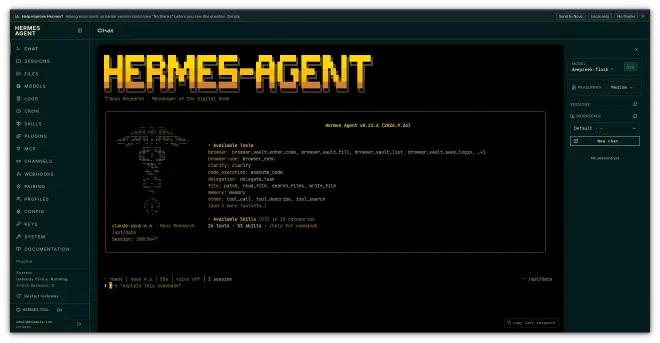
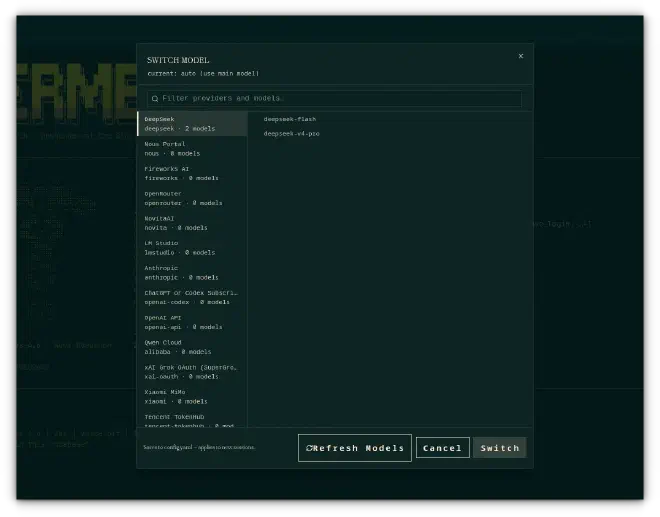
Models: The hub for managing your LLM providers, swapping models, or pointing the agent to local endpoints.
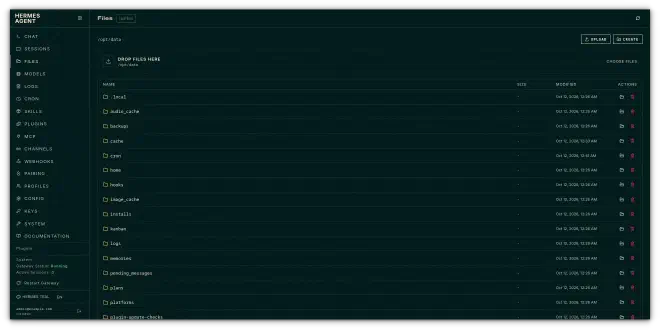
Files: A built-in file explorer to inspect, upload, or download whatever the agent is working on inside its sandbox.
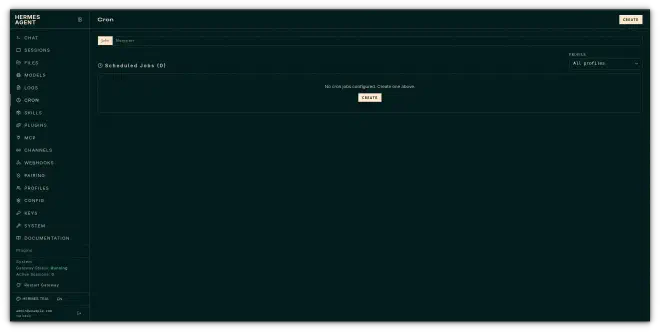
Cron: The scheduling engine where you set up recurring background tasks and daily automations.
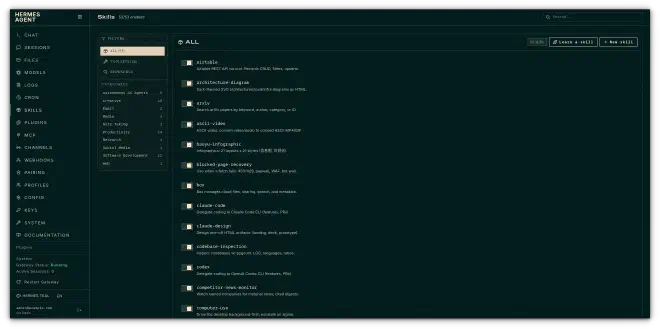
Skills: The library where Hermes stores reusable code and custom tools it has learned or that you have enabled.
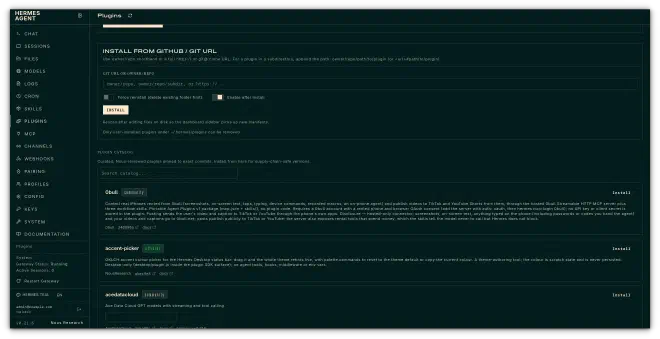
Plugins: The toggle board for enabling extra capabilities and third-party extensions.
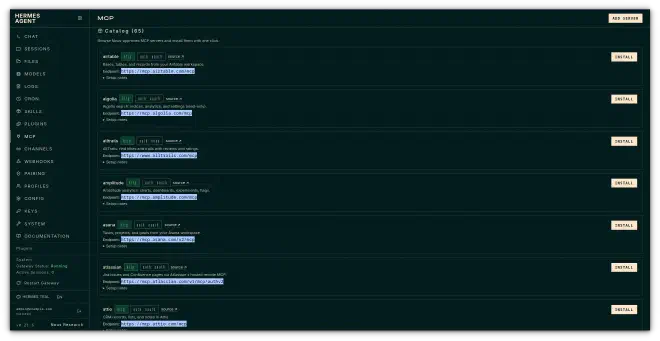
MCP: (Model Context Protocol) The menu for plugging in external tool servers, like GitHub, Home Assistant, or your local databases.
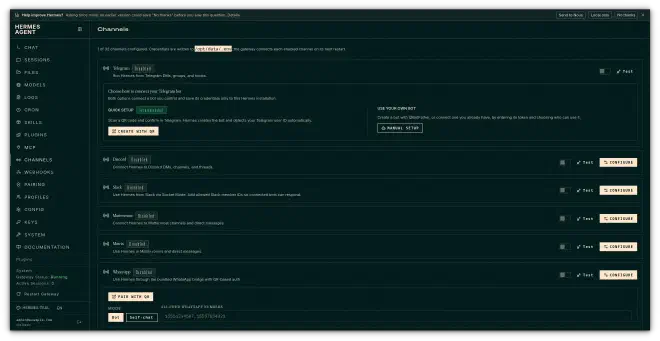
Channels: Your gateway manager for setting up outside integrations like Telegram, Discord, Slack, and IMAP Email.
Webhooks: Where you configure incoming webhooks so external services can trigger the agent.
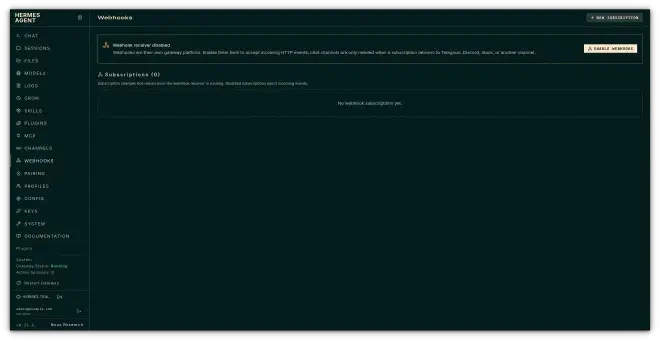


There are a few other settings and menus to dig into, but you can explore those further yourself, as I am honestly still learning about them too.
A Word on Integrations #
One of the biggest reasons to run Hermes is its messaging gateway. It can talk to you wherever you already are, the platform list is genuinely absurd. Here’s the capability matrix for the major ones:
| Platform | Voice | Images | Files | Threads | Typing | Streaming |
|---|---|---|---|---|---|---|
| Telegram | ✅ | ✅ | ✅ | ✅ | ✅ | ✅ |
| Discord | ✅ | ✅ | ✅ | ✅ | ✅ | ✅ |
| Slack | ✅ | ✅ | ✅ | ✅ | ✅ | ✅ |
| — | ✅ | ✅ | — | ✅ | ✅ | |
| Signal | — | ✅ | ✅ | — | ✅ | ✅ |
| — | ✅ | ✅ | ✅ | — | — | |
| Matrix | ✅ | ✅ | ✅ | ✅ | ✅ | ✅ |
| Microsoft Teams | — | ✅ | — | ✅ | ✅ | — |
Plus SMS, Google Chat, Mattermost, DingTalk, Feishu/Lark, WeCom, Weixin, QQ, LINE, ntfy, IRC, SimpleX, Home Assistant, and more.
Setting these up requires passing credentials and managing session pairings, which deserves its own focus. We will cover how to hook Hermes up to your inbox and chat apps in the next tutorial.
Conclusion #
I believe this guide serves as a good starting point for anyone just beginning to venture into the realm of agentic AI. The reason I chose docker is because it saves me from the dependencies hell and it’s a great way to isolate your system’s attack surface area if the agent happens to break loose. XD
Happy tinkering!